

Remote support and remote access
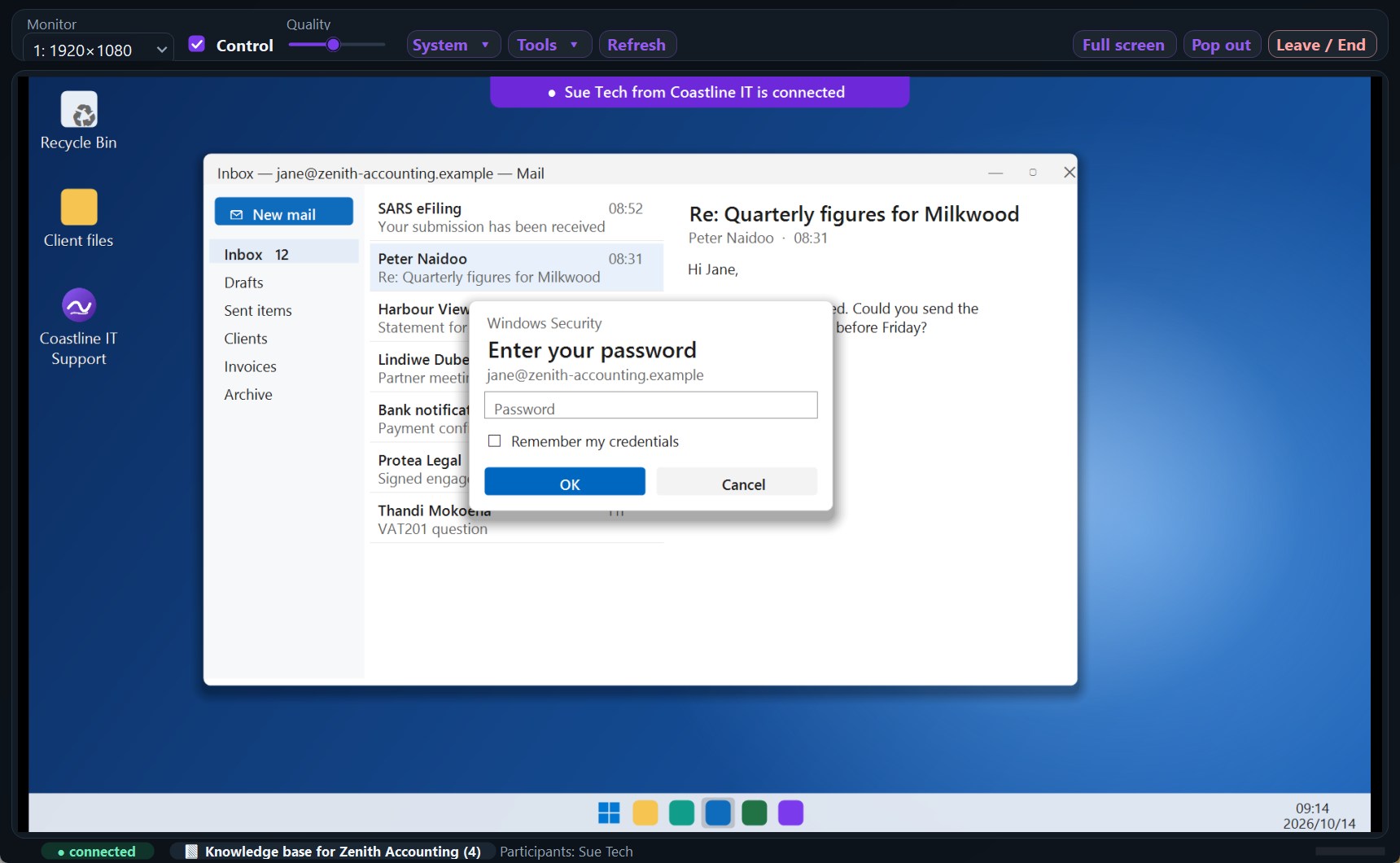
Your customer presses Request Support in an app with your name on it; every technician who is signed in hears it; whoever answers is on their screen in seconds. Or reach their computers when nobody is there — unattended remote access, only if they have allowed it. Your IT customers, the people who use your software, your own office and branches: the same app, under your brand.
Attended support: they ask, you answer
A call that rings everybody
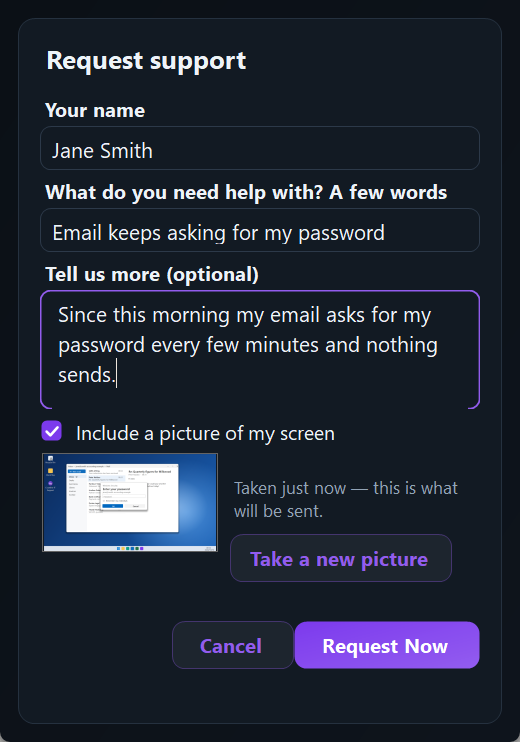
A support request says what is wrong, with an optional picture of their screen, and rings every technician signed in until one takes it. Nobody waits in a queue.
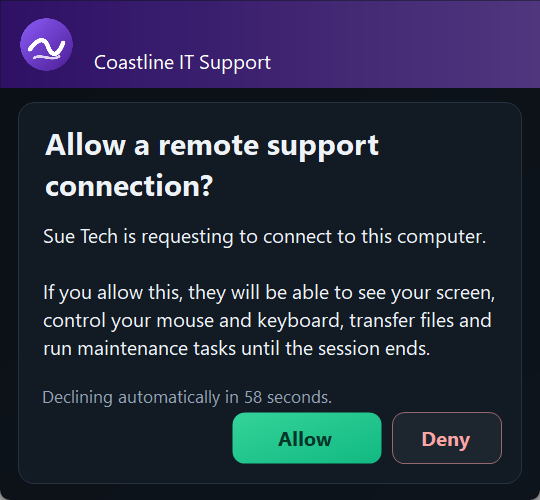
They allow it, every time
A prompt in your colours asks the customer to allow the connection, and says who is connecting. Nothing is seen until they say yes.
Chat before, during and after
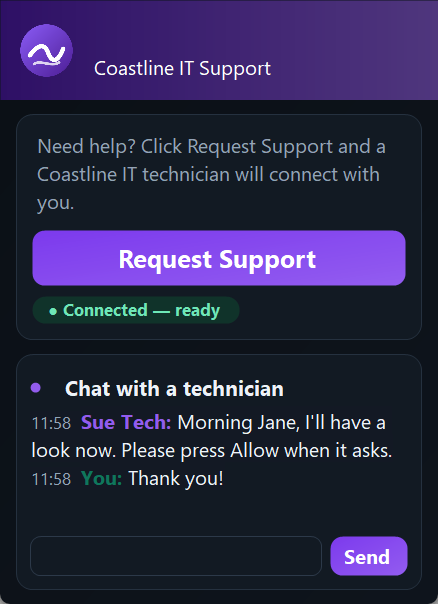
Customers can chat with your team from the tray app without a session, with a ding for each message.
More than one technician
Two technicians can be in the same session — for a hand-over, a second opinion, or training.
Unattended access: their switch, their password
A background service on the computer lets you connect when nobody is at it — at the lock screen, after hours, on a server. It does nothing until the customer ticks allow unattended access in their own app, and they can untick it any time.
A password of their own
A customer can set an unattended password that every technician must type. A technician who types it right once is not asked again — a colleague still is.
Look without connecting
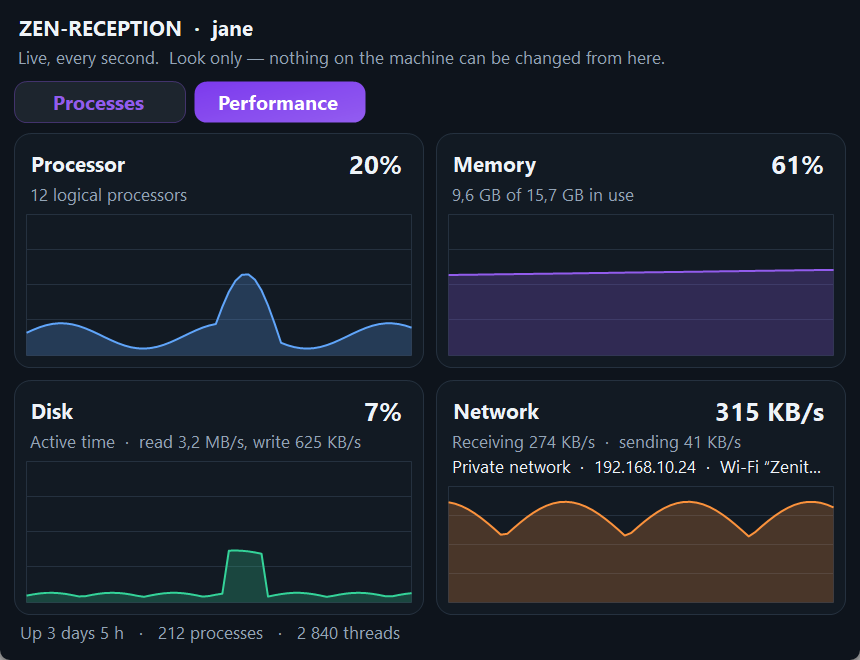
Right-click a computer to see its running programs and its performance — processor, memory, disks and network — without opening a session.
Wake it up
An offline computer can be woken by another of the same customer's computers on the same network.
Exit means offline
When the customer exits your app, the computer goes offline for everybody until they open it again.
In the session
- Every monitor, sharp and fast (H.264), and their real mouse pointer
- All their screens at once, in one picture, laid out as they are on the desk
- Two computers open side by side — copy on one, paste on the other, straight between them
- Copy and paste text and files, both ways
- Drag files on and off their screen
- A file browser for their computer
- Print on your printer from their computer — and on theirs from yours
- Talk to them, and hear their computer's sound
- Ctrl+Alt+Del, the lock screen and admin prompts
- Windows shortcuts and Alt+Tab go to their computer
- Restart, and the session comes back by itself
- Scripts (PowerShell), with the output as it runs
- A privacy screen: their monitor goes black while you work
- Record the session, and keep it on the ticket
- A picture of their screen onto the ticket, in one click
From your phone or tablet
Away from your desk? Open the portal on your phone or tablet, touch the fingerprint sensor, and you are on the customer's screen — nothing to install. Every connection asks for your fingerprint, face or PIN.
No app to install
It runs in your phone's or tablet's browser — iPhone, Android or iPad.
Your fingerprint for every connection
A passkey on your phone, not a code to copy across. A stolen phone opens nothing without your fingerprint, face or PIN — and you can remove it from anywhere.
Built for a finger
Use the screen as a touchpad, or tap exactly where you mean on a tablet, and pinch to zoom. Your own keyboard types on their computer, with Ctrl, Alt, Esc, the arrows, the F-keys and Ctrl+Alt+Del one tap away.
The ticket is right there
Read and add to the job's ticket without leaving the session, and put a picture of their screen on it. Chat with the customer as you work.
Your company decides: it is off until a supervisor switches it on, and files and scripts stay on the desktop console.
Help from outside, on their terms
Sometimes a customer's accountant or software vendor needs to look. The customer makes a code in your app and gives it to them; they connect from their own copy, or from a browser — screen and control only, files only if the customer ticks it, and labelled as an outsider everywhere.
Your technician can ask for outside help too: a code for the session they are in, sent by WhatsApp or email in one click. The technician lets the outsider in, the customer is told who has joined, and the session stays yours.
No app installed yet?
A customer can share their screen from a browser on your support page — view only, with talking — and you can take it from there.
Your brand, all the way through
Your logo, colours, product name and welcome message on the customer's app, the prompts, the download page, the installer and your technicians' console. Change them in the portal and every installed computer picks them up — nobody reinstalls anything.
The apps keep themselves up to date, on your customers' computers and on your technicians'. Every update is signed by us and checked before it is installed, and one that does not come back healthy is put back by itself.